SoftGate Guide
To make Your life easier, below will contain a comprehensive guide how to configure SoftGate.
Sip Configuration
Sip Configuration is pretty straightforward.
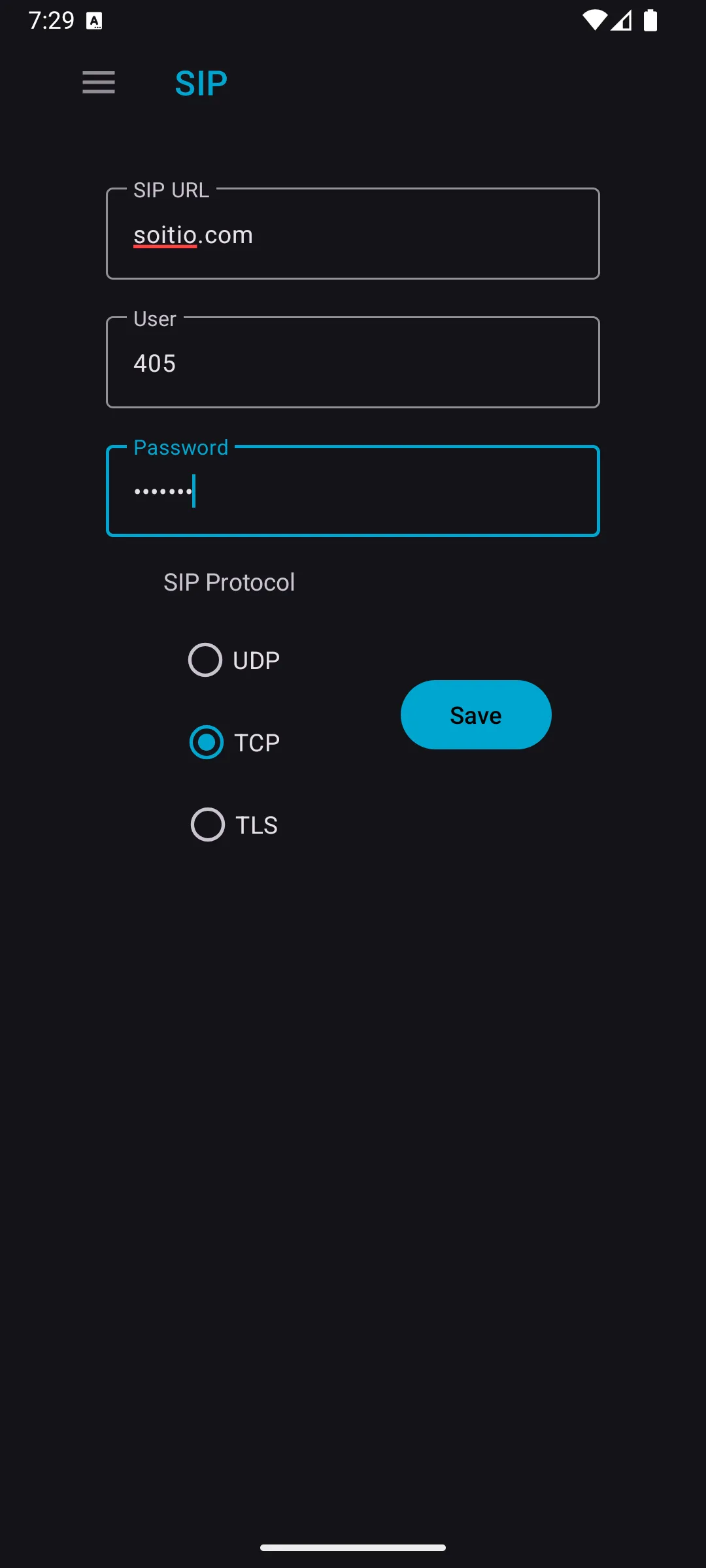
You need to Input your extension login details - number and password. Provide host address and select SIP protocol that you want to use. After inserting all this information, hit “Save”.
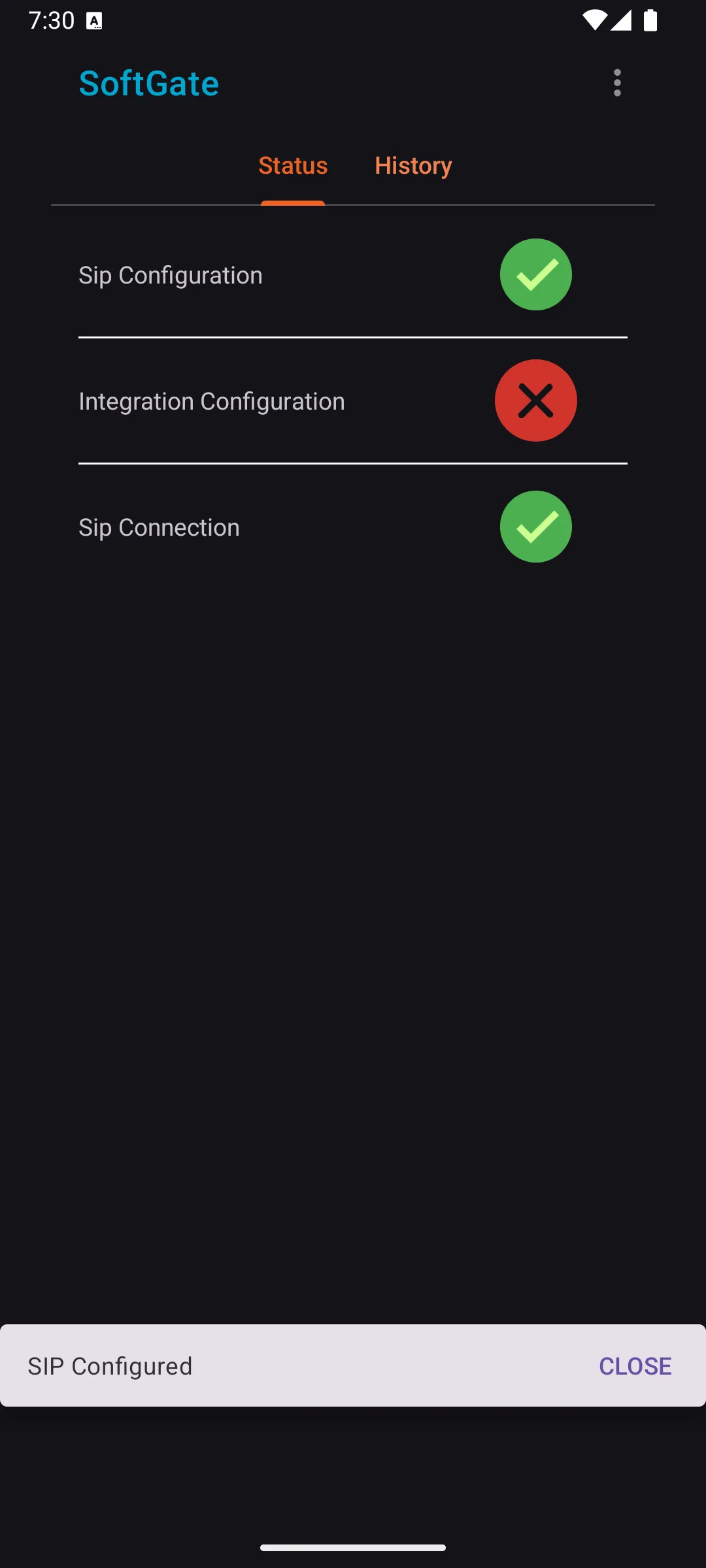
To verify the connection, go back to main screen. Clicking on the “Sip Configuration” icon will tell if there are any immediate issues with your SIP Configuration.
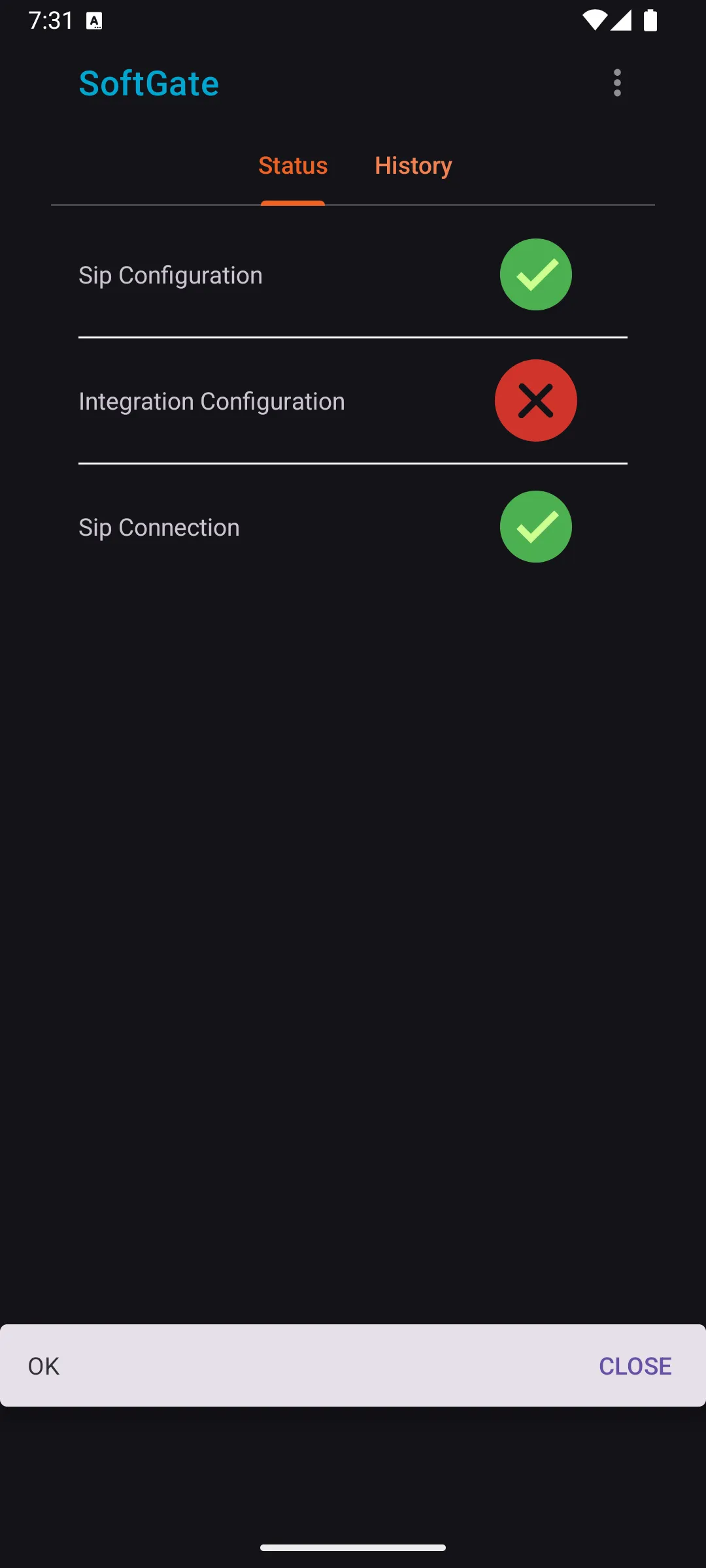
If SoftGate was able to connect to your SIP server, “Sip Connection” will have a green checkmark. Clicking on this Icon will trigger a Snackbar with additional information in case of error.
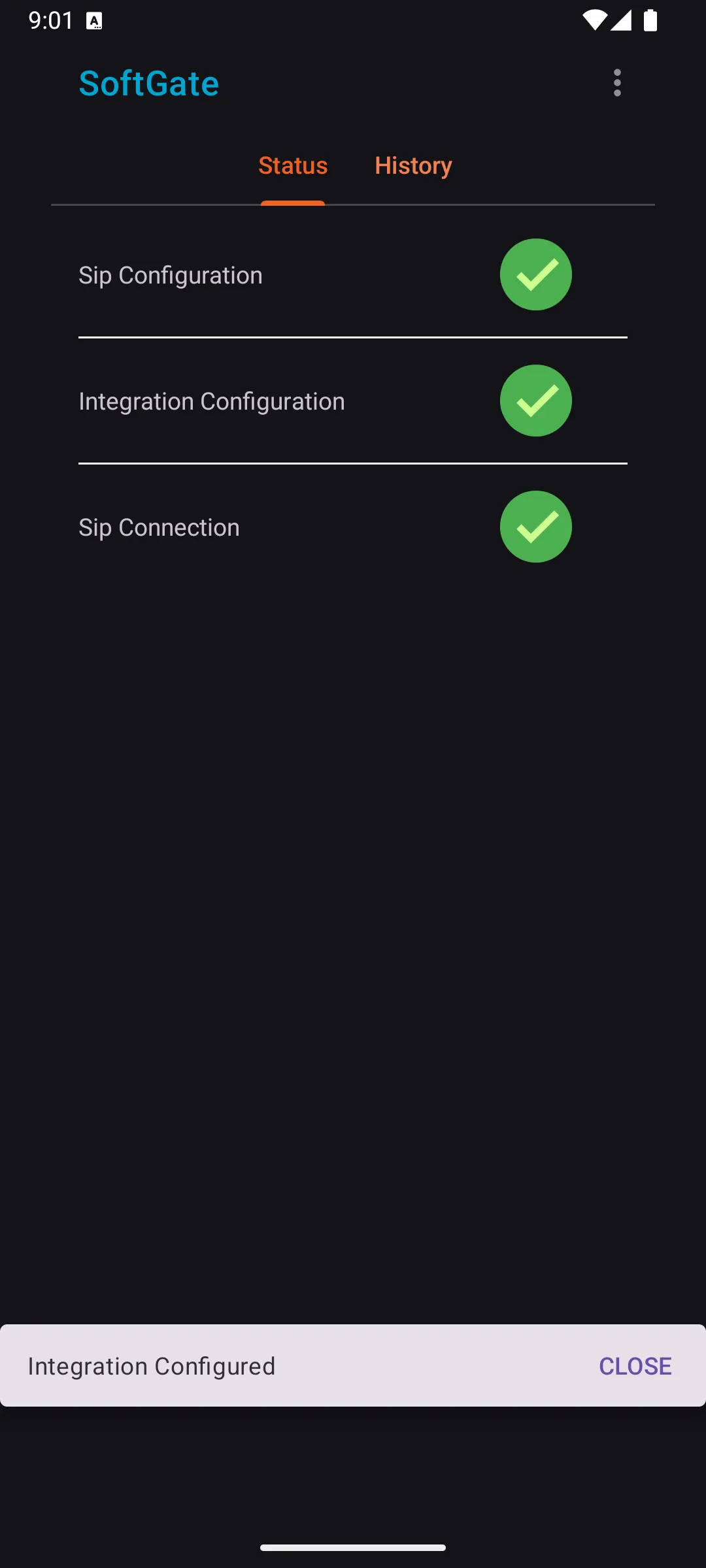
Integration Configuration
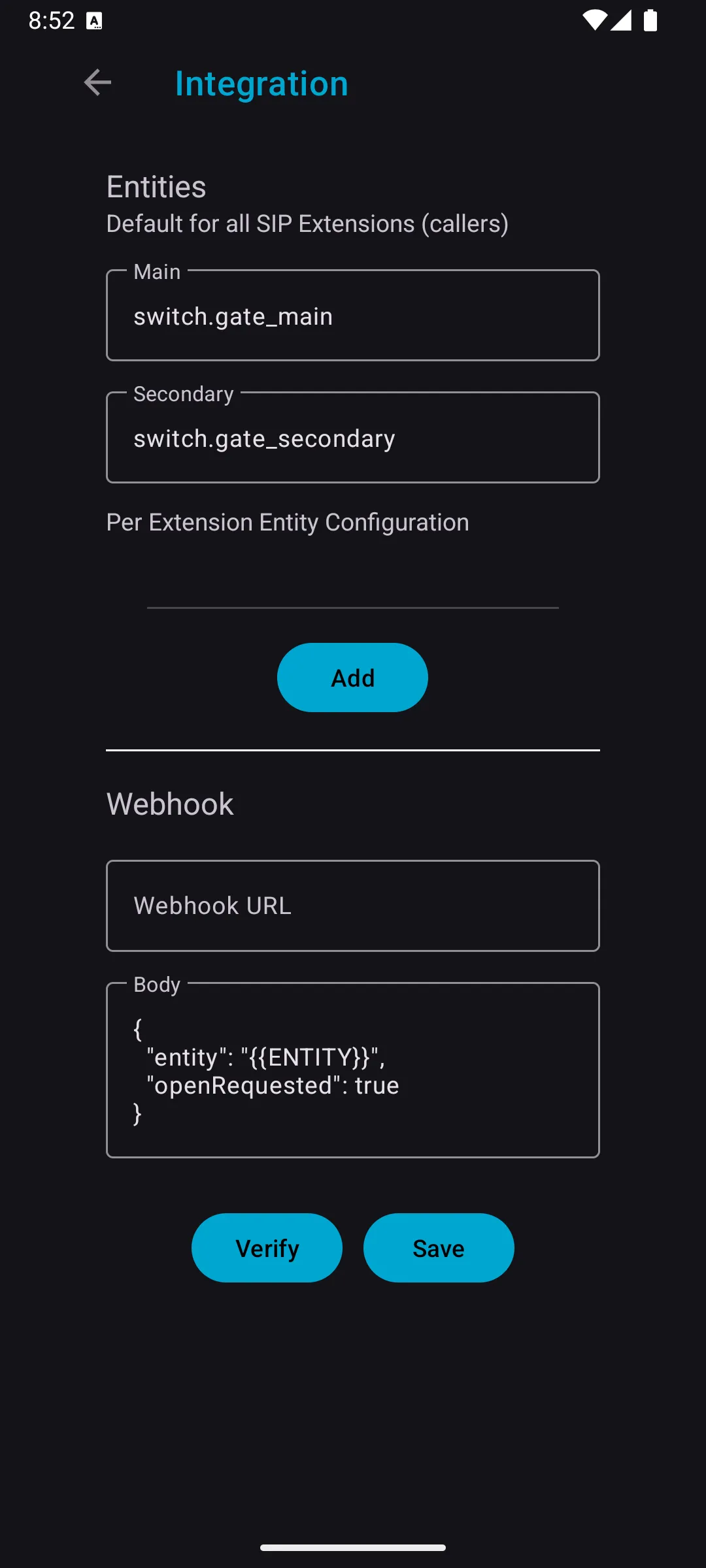
Integration tab in settings allows you to do a lot of really cool stuff.
Let’s start from the top, here we can change the default values that will be put in place of
{{ENTITY}} placeholder. Values are corresponding to the button you click during the active call.
Webhook
Webhook allows you to integrate with any backend server that can receive HTTP POST requests.
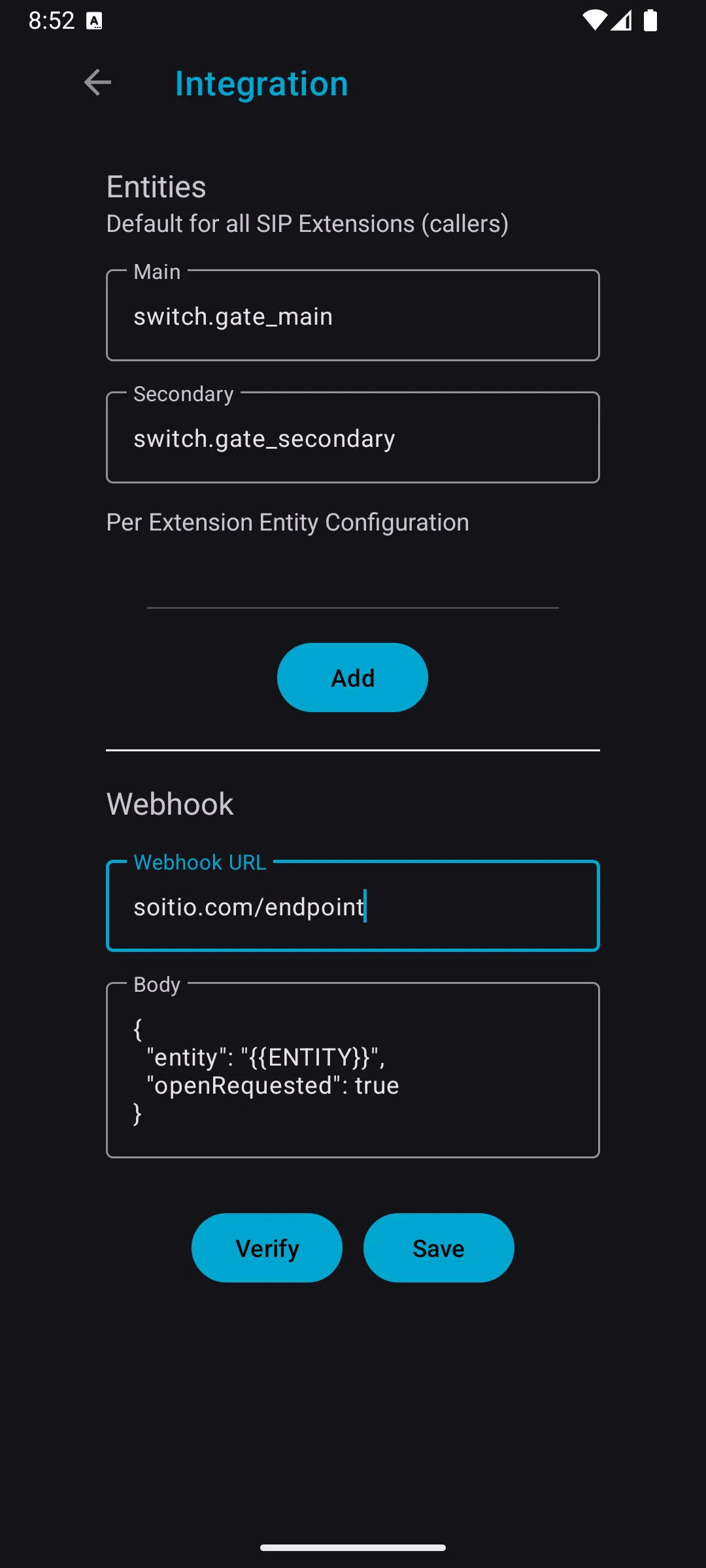
Let’s break this default template a little:
{
  "entity": "{{ENTITY}}", (1)
  "openRequested": true (2)
}| 1 | Specifies which entity to trigger in HA |
| 2 | Additional boolean variable for more complex flows |
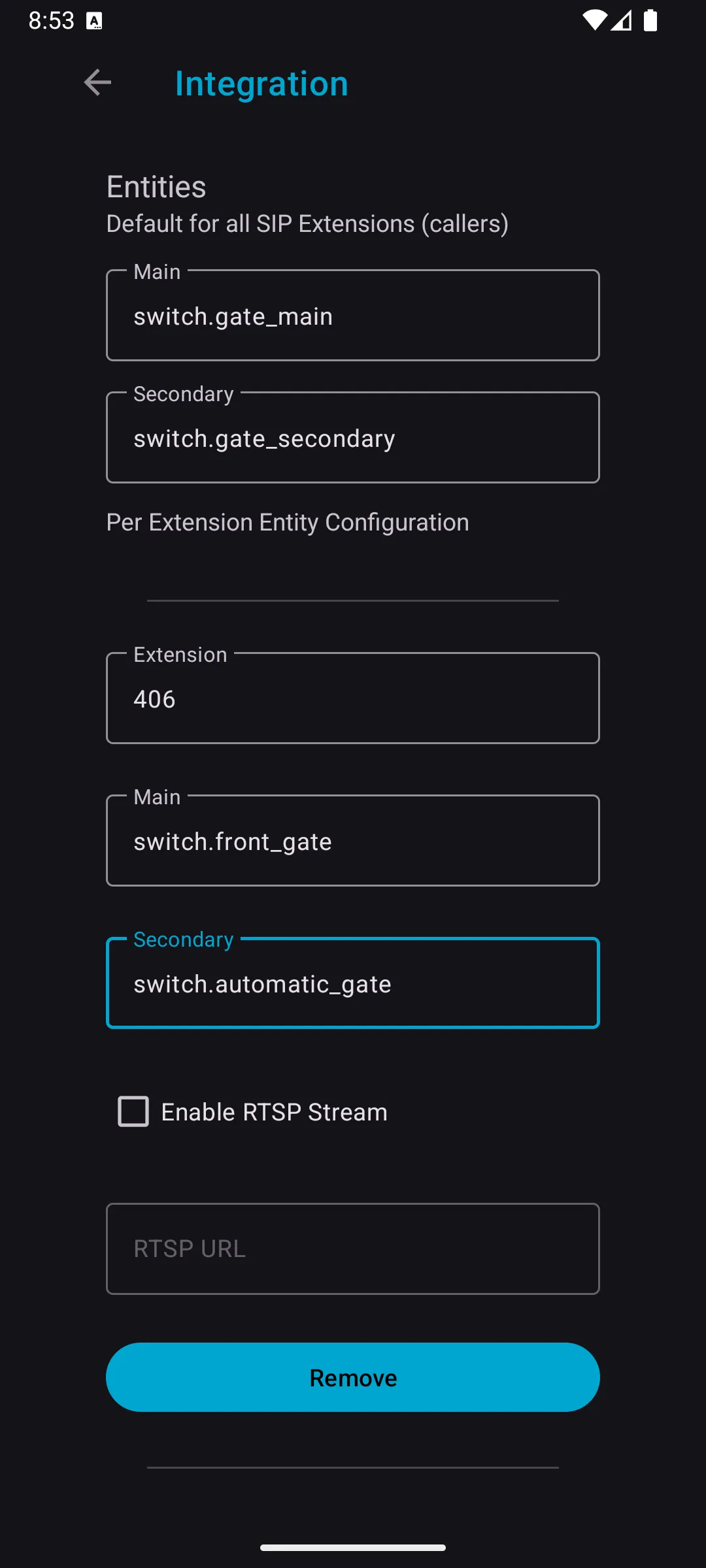
Per Caller Configuration
You are also free to configure this default variables per the caller. Let’s say that you have 3 different entrances to your property. This allow you to configure which entity values will be sent, and also what video feed to use (more on that later).
RTSP Streams
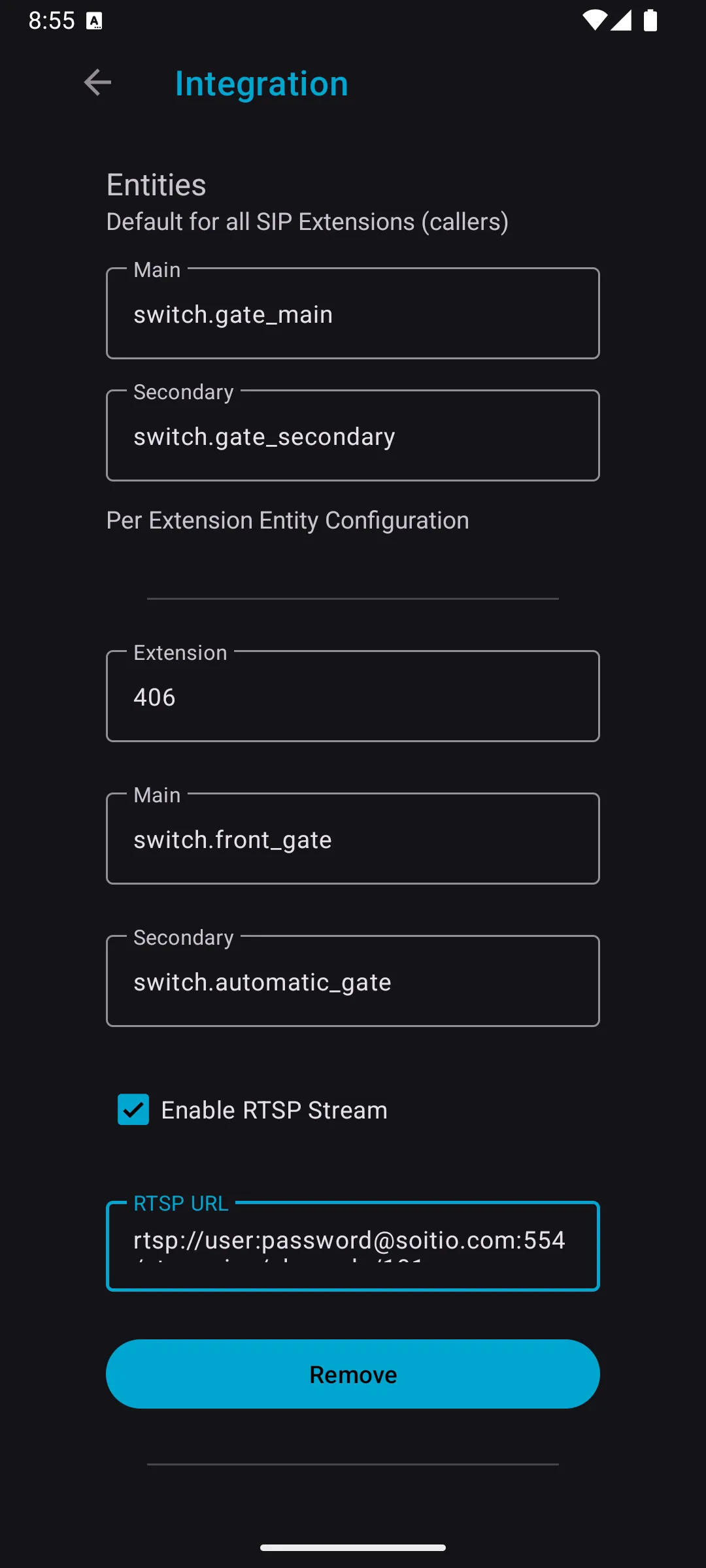
Intercoms work with ring groups in SIP. You know what doesn’t work with ring groups? Early Media.
Well, at least it’s a pain to configure and I wasn’t able to find any reliable source to do so. So instead, if your intercom is configured to call a ring group you can use RTSP feed directly from it. Just configure which extension you want to be handled this way and provide the RTSP URL.
For my device (Hikvision) it was like this:
rtsp://user:password@soitio.com:554/streaming/channels/101
Verification
To verify that the requests are working properly, use “Verify” button. It will send 2 separate requests to the specified endpoint with default entities. If everything looks fine click on “Save”. In the main menu, while clicking on the Integration Icon snackbar will appear with the additional information.